How to Keep Product Labels Readable in AI Video
Choose your settings and review the credit cost before generating.
Create your first videoA beautiful bottle shot can still fail as an advertisement if the brand name changes halfway through. This guide addresses that specific failure, rather than asking you to regenerate the same prompt until something looks right.
Open a 4-second product-photo draft. Upload your own product image and inspect the cost before generating. At the settings in this link (image-to-video, 4 seconds, 720p), Veo 3.1 Lite uses 3 credits on Viralance — about $0.54–$0.90 depending on your pack — checked September 26, 2026. The 4 free credits new accounts get after verification cover one such test.
Separate the label from the advertising message
A label printed on a curved bottle and a headline added over a video are different tasks. The model must recreate the bottle label as its perspective, lighting and reflections change. A headline placed over the finished clip can stay fixed.
Before generating, divide your text into two groups:
| Text | Where it belongs | What to review |
|---|---|---|
| Brand printed on the product | Original product photograph and generated surface | Spelling, letter spacing, stability |
| Price or offer | A separate layer in your editing workflow | Current amount, readability, placement |
| Spoken message | Script and reviewed audio | Pronunciation and accuracy |
| Fine print | A readable closing frame or accompanying copy | Legibility at the final display size |
Viralance's video generator does not guarantee exact typography or provide a lock for package lettering. Treat the table as a production plan, not an automatic feature list.
Prepare one useful photograph
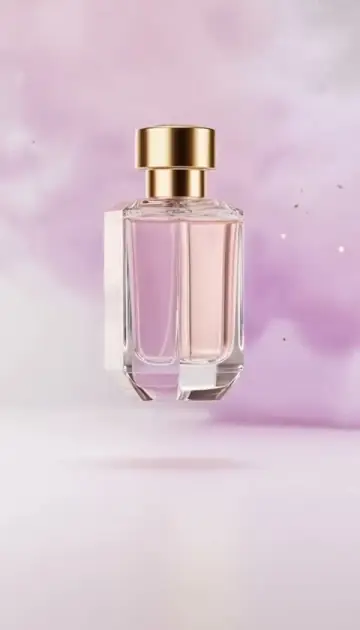
Choose a photograph where the label is already readable at normal viewing size. Keep the whole product in frame with some space around it. A front-facing label is an easier starting reference than one wrapped around a bottle viewed from the side. Remove competing products from the composition before uploading.
Look at the image on a phone. If you have to pinch to read the brand name, a moving version may not solve the problem. You may need a closer source photograph or a different shot, rather than more prompt instructions.
Google's Veo best-practice guide recommends using a strong source image and focusing image-to-video prompts on motion. Our practical application is to describe the movement without asking the model to redesign packaging.
Use a restrained first prompt
This is an illustrative test brief, not a claim about a completed generation:
The bottle stays upright and front-facing. A gentle camera push moves slightly closer while soft light shifts across the glass. Keep the existing packaging, label placement and bottle shape consistent. One continuous shot.
The consistency request describes your intention; it cannot force pixel-perfect preservation. Avoid adding a full orbit, a rotating bottle, a scene transformation and splashing liquid to the same first attempt. Those choices introduce several possible causes of failure at once.
For model input options, see the fal Veo 3.1 Lite image-to-video reference. Viralance's editor and displayed price determine the available settings for your account.
Review the result with a simple worksheet
Watch once at normal speed, then pause at the beginning, middle and end. Scrub any moment where reflections cross the label.
- Shape: Does the cap, shoulder or base change?
- Lettering: Does the name remain readable, including between your three paused frames?
- Color: Does the product become a different shade?
- Framing: Does the label leave the crop or become too small?
- Usefulness: Would this shot communicate the product even with its sound muted?
Record one decision: use, revise, or stop. For a revision, change one variable. If rotation caused the problem, try a stationary product before switching models. If the source lettering is already blurred, replace the photograph first.
Know when another generation is the wrong next step
A technically successful render can still be unsuitable creative work. Automatic failure refunds are not a promise of a refund whenever you dislike the output. Review the result before buying more attempts.
If exact packaging must be visible in every frame, use original footage for the close-up and reserve generated footage for atmosphere or an opening. If only the offer text is failing, add that text after generating instead of asking the video model to draw it.
The single-photo shot list helps separate the opening, detail and closing jobs. For a broader workflow, see AI video ad creation.
Frequently asked questions
Will a higher resolution fix incorrect words? It can improve the output's detail, but it does not establish that the lettering is correct. Check spelling and stability again after any change.
Can I promise the same result with my own product? No. A sample demonstrates a workflow. Your source image and each new generation can produce a different result.
What should I try with a small balance? Use one short, clearly scoped attempt, inspect it, and only then decide whether the source or motion needs changing. Compare credit packs when you know what the next attempt is meant to test.